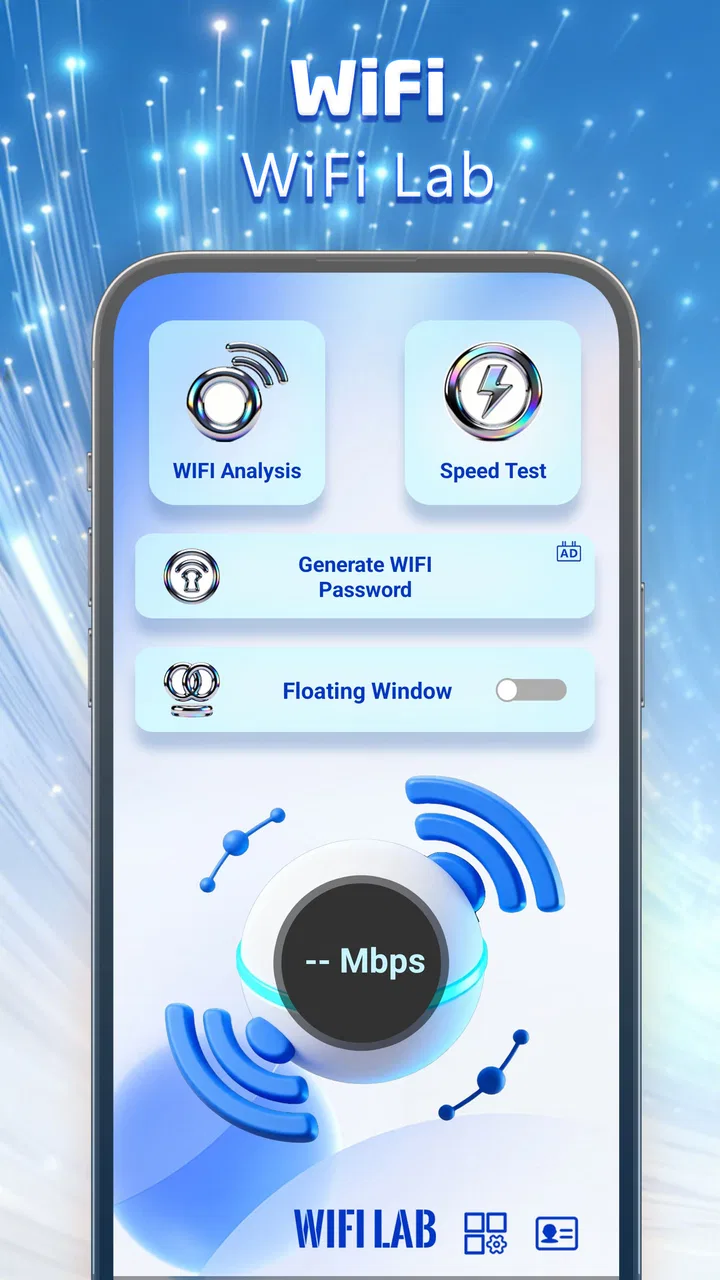
WiFi Lab
- 3.9
- Rating
- 100.00K
- Installs
- Free
- Price

 Analysis by App-foxy
WiFi Lab is a free tools app from RUNNFENG LIMITED that takes a focused approach to home and everyday connectivity: it is intended to help you understand your network rather than simply connect to it. That distinction matters. Most phones already handle joining a wireless network automatically, but they do not always make the condition of that connection easy to interpret. When a video pauses, a download crawls, or a smart device keeps dropping offline, a clearer view of the network can be more useful than another shortcut to the Wi-Fi settings.
I approached WiFi Lab as a practical troubleshooting companion, not as a replacement for a router’s administration panel or a professional network-monitoring suite. Its appeal is the promise of turning a vague complaint such as “the Wi-Fi is bad” into a more understandable situation. The app is listed in the Tools category, carries an Everyone age rating, and is free to use. That makes it easy to consider for a household, a student, or anyone who wants a friendlier starting point before changing router settings.
Understanding the network is the app’s real value
The most important capability here is the attempt to make network conditions easier to understand. In ordinary use, people often judge Wi-Fi by whether a page opens or whether a streaming service plays. That is a very rough test. A connection can appear fine for browsing while still struggling with interruptions, congestion, or inconsistent performance. A network-focused utility can help users look at the connection as something with behavior and context, rather than treating it as a simple on-or-off switch.
You May Also Like

 Blood Strike: 2.5 Anniversary
Blood Strike’s Loadouts Turn Every Drop Into a Tactical Gamble
A close look at Blood Strike’s custom loadouts: how fast access to signature weapons reshapes its battle royale rhythm, rewards preparation, and narrows the gap between fights.

 Pandora - Music & Podcasts
Pandora’s Music Is Easy to Start, but Harder to Recover
Pandora’s strength is its low-effort path from a seed to a station. Its weak spot is how much confidence it asks you to place in connection, setup, and quiet recovery.

 8 Ball Pool
 Is Built on Rivalries, Rematches, and Routine
A close look at the rivalries, rematches, shared routines, and unanswered safety questions that turn a quick pool match into a persistent mobile community.

 Samsung Music
’s Quiet Strength Is Playing What You Already Own
Its reach comes less from spectacle than from dependable access to a personal library. That simplicity is both the app’s strongest retention engine and its ceiling.

 AccuWeather: Weather Radar
AccuWeather Review: A Quick, Clear Forecast for Everyday Decisions
For everyday plans, the best forecast is the one you can understand quickly. AccuWeather makes rain timing, radar, and local conditions easy to act on, with a few trade-offs.

 Hill Climb Racing
Why Hill Climb Racing Still Turns Crashes Into One More Run
A tiny car, a bumpy hill and one more upgrade: Hill Climb Racing keeps resurfacing because its simple chaos makes every near-miss feel personal.
More From Our News Desk



That focus gives WiFi Lab a sensible place in the tools category. I would not install it merely to join a wireless network; the operating system already does that well. I would use it when I want to investigate why one room feels slower than another, whether a problem follows the phone or stays with the home network, or whether a complaint is really caused by the internet service rather than the wireless link.
The difference is subtle but useful. If an app only reports a single result, it can encourage people to make a quick judgment and move on. A better troubleshooting habit is to compare conditions: test near the router, test in the problem room, repeat at a different time, and check whether several devices experience the same issue. WiFi Lab is most interesting when used as part of that process. The capability is not just seeing a network result; it is using network information to ask a better question.
That makes it particularly approachable for people who are curious but not technically trained. You do not need to begin by learning every router term or reading a long configuration manual. You can start with a specific annoyance and use the app to organize your observations. The useful shift is from guessing to comparing. Even when the app cannot solve the underlying issue by itself, that change can prevent random setting changes that make troubleshooting harder.
How I would use it in practice
I would begin with a simple baseline. I would check the connection in the same room as the router, note what the app shows, and then repeat the check where the problem is most noticeable. The important part is keeping the situation as similar as possible: use the same phone, avoid moving around during a check, and do not compare a quiet afternoon with a busy evening as though they were identical conditions.
Next, I would repeat the check after moving only one variable. For example, I might close a large download, pause cloud backup, or move a short distance away from a thick wall. This creates a more useful experiment than pressing a test button once and assuming the result represents the entire network. If the result changes after one adjustment, I have a clue about the source of the trouble. If it does not, I know that particular change was probably not the answer.
This is also where a network-understanding app can be more valuable than the usual phone settings screen. The settings screen is excellent for choosing a network, viewing basic connection information, and forgetting an old connection. It is not designed to guide a comparison between locations or help a non-specialist form a troubleshooting routine. WiFi Lab’s role is more investigative, even if the final fix still involves moving the router, restarting equipment, or contacting the internet provider.
One practical tip is to avoid treating a single reading as a verdict. Wireless conditions change, and a temporary result can be caused by activity elsewhere in the home. I would take several observations and look for a pattern. A consistently weaker result in one area suggests a coverage or obstruction problem. A problem that appears everywhere at the same time points more toward the router, the service connection, or general congestion. A problem affecting only one device may require checking that device rather than rebuilding the whole network.
Another useful workflow is to compare devices without changing the location. If one phone behaves normally while another struggles in the same spot, the network may not be the only suspect. That does not prove the device is faulty, but it prevents an easy mistake: blaming the router for every wireless problem. Conversely, if several devices show the same issue, the case for investigating the network becomes stronger.
I would also use the app before and after a change, rather than making several changes at once. Restarting the router, moving it, changing a setting, and relocating a device simultaneously may produce a better result, but it leaves no clear explanation. A slower, one-change-at-a-time method is less exciting, yet it gives you information you can use later.
A realistic home scenario
Imagine a family whose living-room television streams smoothly, while a laptop in a back bedroom repeatedly loses patience during video calls. The first reaction might be to upgrade the internet plan. That could be the right answer, but it is not the only possibility. I would use WiFi Lab to compare the connection in the living room, hallway, and bedroom, then repeat the checks while the household is using the network normally.
If the bedroom consistently looks worse while the living room remains stable, the likely lesson is about wireless reach or the room’s physical layout, not necessarily the speed purchased from the provider. The family could then try a better router position, reducing obstructions, or considering suitable network equipment. If every location looks poor during the same period, the investigation should move toward the router or service connection. If only the laptop has trouble, checking its own wireless behavior makes more sense than replacing everything.
What I like about this scenario is that the app can make the conversation more concrete. Instead of arguing from personal impressions, the family can compare the same places and conditions. It will not magically identify the perfect fix, and I would not expect it to replace a technician’s diagnosis, but it can stop people from spending money on the wrong solution first.
A second scenario involves a shared apartment. One person may report that the network is unusable, while another says it is fine. Rather than assuming either person is exaggerating, I would compare where each device is being used and when the issue occurs. Different rooms, walls, device hardware, and usage patterns can produce genuinely different experiences. A network tool is most helpful when it supports that kind of fair comparison.
Where it fits beside familiar alternatives
The obvious alternative is the built-in Wi-Fi page on an Android or iOS device. That option is faster for basic tasks and does not require opening another app. If all you need is to join a network, check whether the phone is connected, or remove an old saved connection, the system settings are the better choice. WiFi Lab earns its place only when you want to examine the connection more deliberately.
Another alternative is the router’s own companion application. Router apps are usually stronger for managing the network itself: changing configuration, controlling access, viewing connected equipment, or handling the hardware supplied by a particular brand. If your goal is administration, the router app is likely more appropriate. WiFi Lab is better viewed as a neutral observation tool for the experience you are having on the device in front of you.
At the other end are specialist network utilities. They can be more suitable for advanced users who need detailed diagnostics, structured reports, or deeper control. The trade-off is complexity. A technically rich application can show more information while making it harder to know what action to take. WiFi Lab’s practical advantage is its narrower purpose: helping an ordinary user understand a network problem without starting with professional terminology.
That comparison also reveals its limitation. A focused tool may help you recognize a pattern, but it may not provide the complete repair path. You may still need to access the router, reposition hardware, test a wired connection, or speak with your provider. I see that as an important expectation to set. This is a tool for understanding and narrowing down a problem, not a guarantee that every wireless issue can be fixed from the app.
Trade-offs before you rely on it
WiFi Lab’s simplicity is both its strength and its constraint. A beginner can approach a focused network tool without learning a complete vocabulary first, but a person who already manages several access points or needs detailed technical evidence may quickly want more specialized controls. The right choice depends on whether your goal is clarity or depth.
I would also avoid using any network utility as a substitute for real-world testing. A reading can tell you something about the moment in which it was taken, but it does not automatically represent every room, device, or time of day. The most reliable use is comparative: same device, different location; same location, different time; same network, different device. That method takes a little patience, but it produces much better decisions than chasing one impressive-looking result.
There is another trade-off for privacy-conscious users. Any app that helps inspect a network deserves a careful look at what it displays and how comfortable you are using it on a personal or workplace connection. I would keep the app’s role limited to troubleshooting, avoid sharing network details casually, and remove it when I no longer needed it if I were testing a temporary problem. These are sensible habits for any network-related utility, especially on a connection shared with other people.
The app is free, which lowers the barrier to trying it. Free access is useful when you are investigating an occasional problem and do not want to commit to a specialist tool. At the same time, I would judge it by whether it saves time and improves decisions, not simply by the absence of a purchase price. An app that encourages repeated, unhelpful checking would not be valuable just because it costs nothing.
Its current version is 1.0.0, and it requires an operating system version of 10 or newer. That makes compatibility an important practical check before installation, particularly if you use an older phone or keep a secondary device for testing. The app has reached over 100K installs, with a 3.9 average from 213 ratings and 18 reviews. Those figures suggest a real audience, while also reminding me not to treat it as a universally perfect solution. I would install it with a specific network question in mind and decide from my own experience whether it belongs in my regular toolkit.
Who will get the most from it
I think WiFi Lab is best for people who want a clearer starting point when wireless performance feels inconsistent. It suits renters who cannot replace the building’s network immediately, families trying to understand why rooms behave differently, students sharing a connection, and less technical users who want evidence before asking for help. It can also be useful for someone setting up a new home office and wanting to compare a work area with the rest of the home.
The app is especially worthwhile for users who are willing to follow a small testing routine. Check a baseline, change one thing, repeat the check, and record what changed. That approach turns a general-purpose tool into a practical diagnostic habit. A generic store summary cannot tell you to do that, but it is the kind of discipline that determines whether network information becomes useful or merely interesting.
I would recommend skipping it if you only need the normal connection controls already available in your phone. I would also look elsewhere if you are responsible for a complex network and need advanced administration, detailed monitoring, or professional reporting. In those situations, the router’s management software or a specialist utility will probably be a better fit.
For everyone in between, the app’s value depends on expectations. It will not make a weak service plan faster, remove every physical obstruction, or repair faulty hardware by itself. What it can do is help you separate different kinds of problems and choose the next step with less guesswork. That is a modest role, but an honest and useful one.
My overall impression is that WiFi Lab makes the most sense as a first-response tool. When the network behaves strangely, I would open it before changing several router settings or paying for an upgrade. I would compare locations, repeat observations, and use the results to decide whether the issue is local, device-specific, or broader. For a free Tools app from RUNNFENG LIMITED, that focused purpose gives it a clear audience. If you want to understand your Wi-Fi before trying to fix it, WiFi Lab is worth a practical test; if you need deep network control, choose a more specialized alternative.
FAQs for WiFi Lab
01What is WiFi Lab, and what can I use it for?
WiFi Lab is a utility app designed to help users inspect and understand nearby wireless networks. Depending on your device and the app version, it may provide information such as network names, signal strength, channel usage, connection details, and basic diagnostic tools. It is mainly useful for troubleshooting slow or unstable Wi-Fi and learning more about your local network environment.
02Can WiFi Lab reveal Wi-Fi passwords or connect me to protected networks?
No legitimate Wi-Fi analysis app should be used to obtain passwords or access networks without permission. WiFi Lab is intended for analyzing networks that you own or are authorized to test, not for bypassing security. Features and available information can also be limited by Android or iOS privacy restrictions. Always use the app responsibly and never attempt to access another person’s network without explicit authorization.
03Does WiFi Lab work on both Android and iPhone?
Compatibility depends on the specific version of WiFi Lab and the operating system installed on your device. Android generally allows wireless diagnostic applications to access more network-related information, while iOS applies stricter limitations to Wi-Fi scanning and system data. Before downloading, check the official store listing for supported devices, operating-system requirements, and any permissions needed for the features you want to use.
04What permissions does WiFi Lab require, and should I be concerned about privacy?
WiFi Lab may request permissions related to nearby devices, local network access, location, or network information, depending on the platform and its available tools. Some permissions are required by the operating system for wireless scanning, even when the app does not directly use your precise location. Review the store’s privacy details, grant only necessary permissions, and avoid installing modified versions from unofficial websites.
05Is WiFi Lab suitable for improving my home Wi-Fi performance?
WiFi Lab can be useful when diagnosing common home-network problems, such as weak signal areas, crowded wireless channels, or inconsistent connections. It may help you identify where coverage is poor and provide information for choosing a better router position or channel. However, it cannot replace your router’s administration tools, increase your internet plan speed, or fix problems caused by your provider or faulty hardware.
Pros
- Quickly scans nearby Wi‑Fi networks and displays essential connection details.
- Useful signal-strength information helps identify better spots around your home.
- Simple interface makes basic network testing accessible to nontechnical users.
- Can help detect crowded channels and improve wireless network planning.
- Lightweight design should run smoothly on most modern Android devices.
Cons
- Some advanced diagnostic features may require technical networking knowledge.
- Results can vary depending on device hardware and Android permission settings.
- Wi‑Fi scans may consume extra battery during repeated or continuous testing.
- It cannot improve internet speed when the issue comes from your provider.
- Ads or locked features may limit the experience in the free version.

WiFi Lab
Gallery